Enroll an iPhone or iPad by hand
This path is for a device already in use. You create a token that expires. The person with the device opens it in Safari and installs the management profile.
The push certificate must already be Configured. See Push certificate. Also click Generate identity on ADE settings — without that step the device cannot download the profile.
Create the token in the console
Settings → Apple → Manual enrollment.
Click New token. A new row appears in the table, with Status Active.
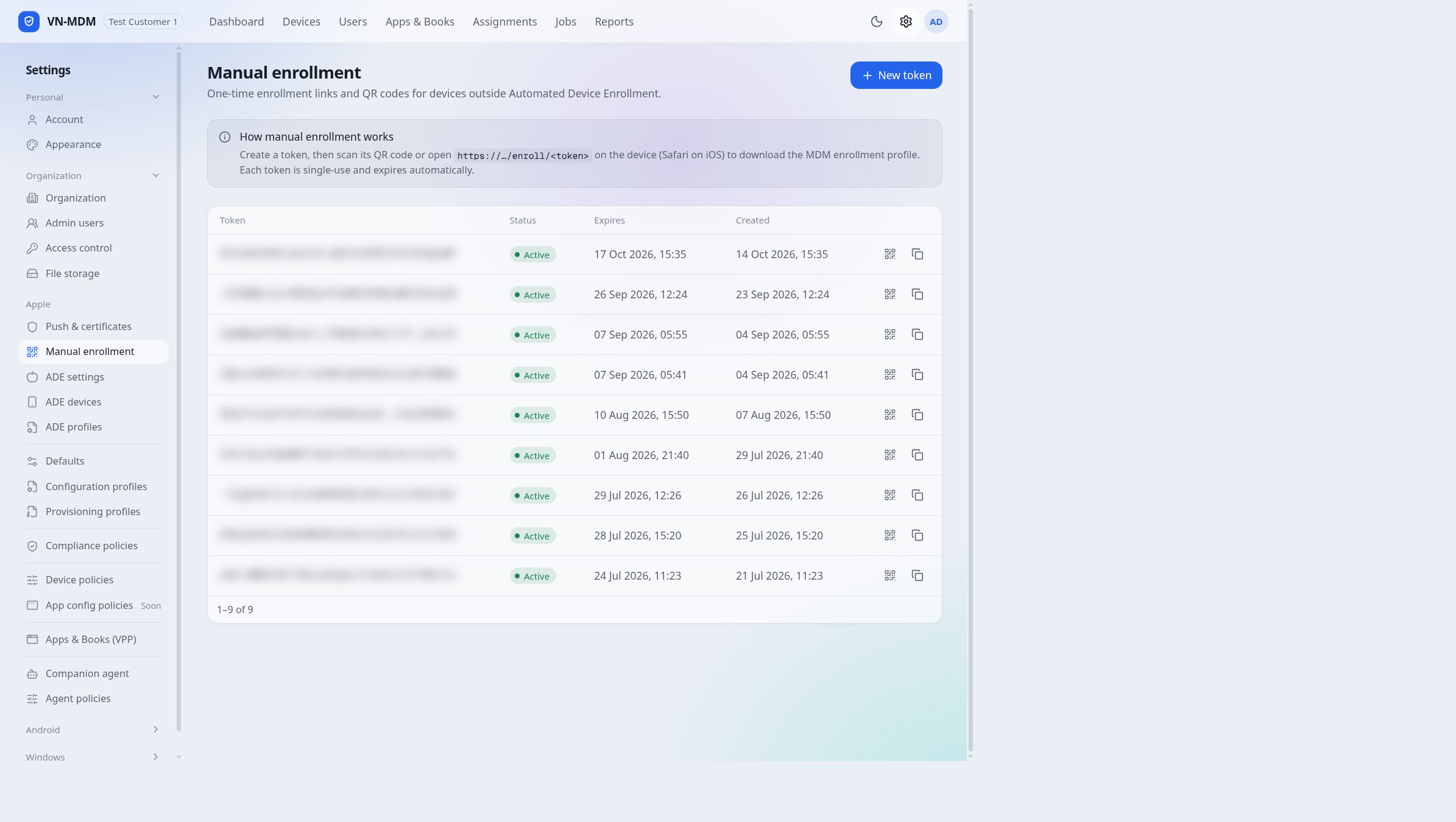
Each row is one token. The token column is blurred. The QR icon opens the code. The icon beside it copies the link. The top row was created at 14 Oct 2026, 15:35, and was used to enroll an iPhone. Status is still Active. Expires is 17 Oct 2026, 15:35. The help box says each token is single-use. The Status column does not change after the device is Enrolled. Click the copy icon to take the link, or the QR icon so the person with the device can scan it.
The link looks like …/enroll/token. Send it to the right person. Do not post it where many people can see it. After a device is Enrolled, Status stays Active. The Expires column is when the link stops downloading the profile. Status does not change by itself when that time is reached.
On the iPhone or iPad
Open Safari (not another browser) and open the link, or scan the QR code.
When the device asks whether to download a configuration profile, allow it.
Open Settings. Near the top is the profile you just downloaded (on newer iOS), or go to Settings → General → VPN & Device Management.
Open the management profile, tap install, enter the screen passcode if asked, then trust the remote-management warning.
Tap done. Within a few minutes the device appears under Devices with Status Enrolled.
Devices enrolled via this path operate in Unsupervised mode. Administrators can still perform key remote operations:
- Remote screen lock (Lock Device): Send an instant lock command to secure data if a security risk is suspected.
- Remote wipe (Initialize Device / Wipe): Remotely erase all device data if lost or when an employee departs.
- Clear forgotten passcode (Clear Passcode): Remove the screen lock passcode if forgotten without restoring.
- Enforce passcode policies (Passcode Policy): Require minimum length and complexity for device unlock.
- Pre-configure Wi-Fi, VPN & Email: Automatically connect to company Wi-Fi and corporate mailboxes.
- Deploy apps: Push work apps to the device. The phone asks the person to agree before it installs. Remove them when needed.
- Change roaming (Change Roaming Settings): Turn voice and data roaming on or off on an iPhone.
- The user can open Settings and tap Remove Management without an administrator approving it.
- You cannot prevent the user from turning off Wi-Fi, and cannot force connection to only 1 specific Wi-Fi.
- Lost Mode is not supported.
- You cannot rename the device, set the wallpaper, or restart or shut it down remotely.
If you need anti-removal protection and strict Wi-Fi lockdown, see the Rollout map to put devices into Supervised mode using Apple Business Manager or Apple Configurator.
Common questions
- Can I enforce 1 specific Wi-Fi and prevent users from turning Wi-Fi off with manual enrollment?
- No. Apple only permits these restrictions on Supervised devices. See the Rollout map to select a Supervised enrollment method.
- The link says the token cannot be used?
- The Expires time has passed, or Status is no longer Active. A finished enroll does not change Status. Status also does not change by itself when Expires is reached. The link downloads the profile while Status is Active and the Expires time has not passed. When it has expired, create a new one with New token.
- Install finished, but Devices does not show the phone?
- Wait one or two minutes and reload the page. The device needs a network. The push certificate must still be Configured.