Device list
This is where you find a device, see whether it is managed, and see whether it has checked in recently.
When to use this page
You are signed in and want to see the organization’s iPhones, iPads, and other devices.
Open the list
-
On the top bar, click Devices.
-
The All devices tab is every device. The Device groups tab is the groups — see Device groups.
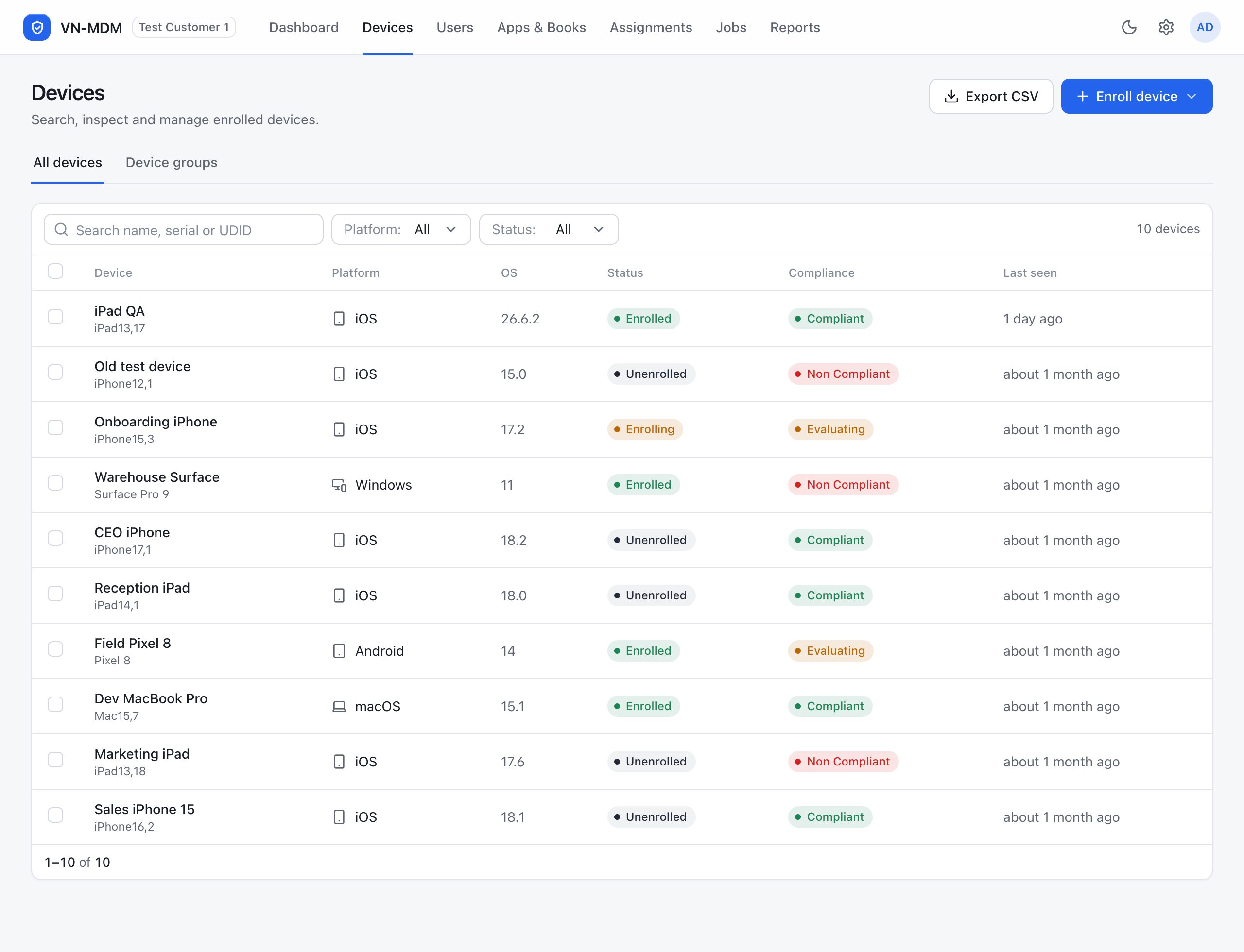
The device list. The search box and the Platform and Status filters sit above the table. The count is at the top right.
What each column says
| Column | Meaning |
|---|---|
| Device | The device name. The small line under it is the model code, for example iPhone or iPad. |
| Platform | iOS is iPhone and iPad. macOS, Android, and Windows are other devices. |
| OS | The operating-system version the device reported. |
| Status | Whether the device is managed. See the status table below. |
| Compliance | Whether the device is failing a rule that was assigned. |
| Last seen | The last time the device contacted VN-MDM. “1 day ago” means about one day ago. |
Device status
| Label on screen | Meaning |
|---|---|
| Enrolled | The device is managed. It can receive commands and profiles. |
| Enrolling | Enrollment is in progress and not finished. |
| Unenrolled | Not managed yet, or the management profile was removed. |
The Compliance column
| Label on screen | Meaning |
|---|---|
| Compliant | No rule is reporting a violation. A device with no rule assigned also shows this. |
| Non Compliant | At least one rule is failing. |
| Evaluating | VN-MDM is waiting for the device to return the check result. |
Find a device
Search name, serial or UDID: type the device name, serial number, or UDID, and wait for the list to filter.
Platform: choose iOS if you only want iPhones and iPads.
Status: choose Enrolled if you only want devices that are managed.
Other actions on this page
- Export CSV downloads the table as a file you can open in Excel.
- Enroll device adds a new device. See enrolling a device.
- Click a device name to open one device.
- Tick the box at the start of a row and an action bar appears, including send a command. See Send a command.
Removing a row from the list and erasing data on the device are two different actions. Do not tick a device and delete it when you only want to look. Delete from MDM is on the device page. The wipe command is Initialize Device in Send a command.
Common questions
- The device is Enrolled, but Last seen is a long time ago?
- The device is still managed, but it has not checked in for a while. Check that the device has a network and that the screen is unlocked. A new command waits until the device is online.
- I filtered to iOS and I still see an iPad?
- That is expected. iPhone and iPad share the iOS group on this table.