Enroll an iPhone or iPad
This page is an overview map. Choose the management mode and enrollment method that fit your organization, then follow each detailed page that comes after.
- Always neededPush certificateWithout it, commands do not reach the device.
- Choose modeSupervised vs UnsupervisedDecides device control level.
- EnrollABM / Configurator / QR4 device deployment methods.
- After enrollmentConfig & AppsAssign Wi-Fi, restrictions, and apps.
VN-MDM manages an iPhone or iPad with an Apple profile installed on the device. The user does not install a separate management app. To control devices, the push certificate (Push & certificates) must be in Configured status.
A sensible order
-
Sign in to the console.
-
Open the gear Settings, the Apple group, then Push & certificates. Status needs to be Configured. This certificate lets VN-MDM wake the device and send commands. Without a certificate, an enrolled device still does not receive commands.
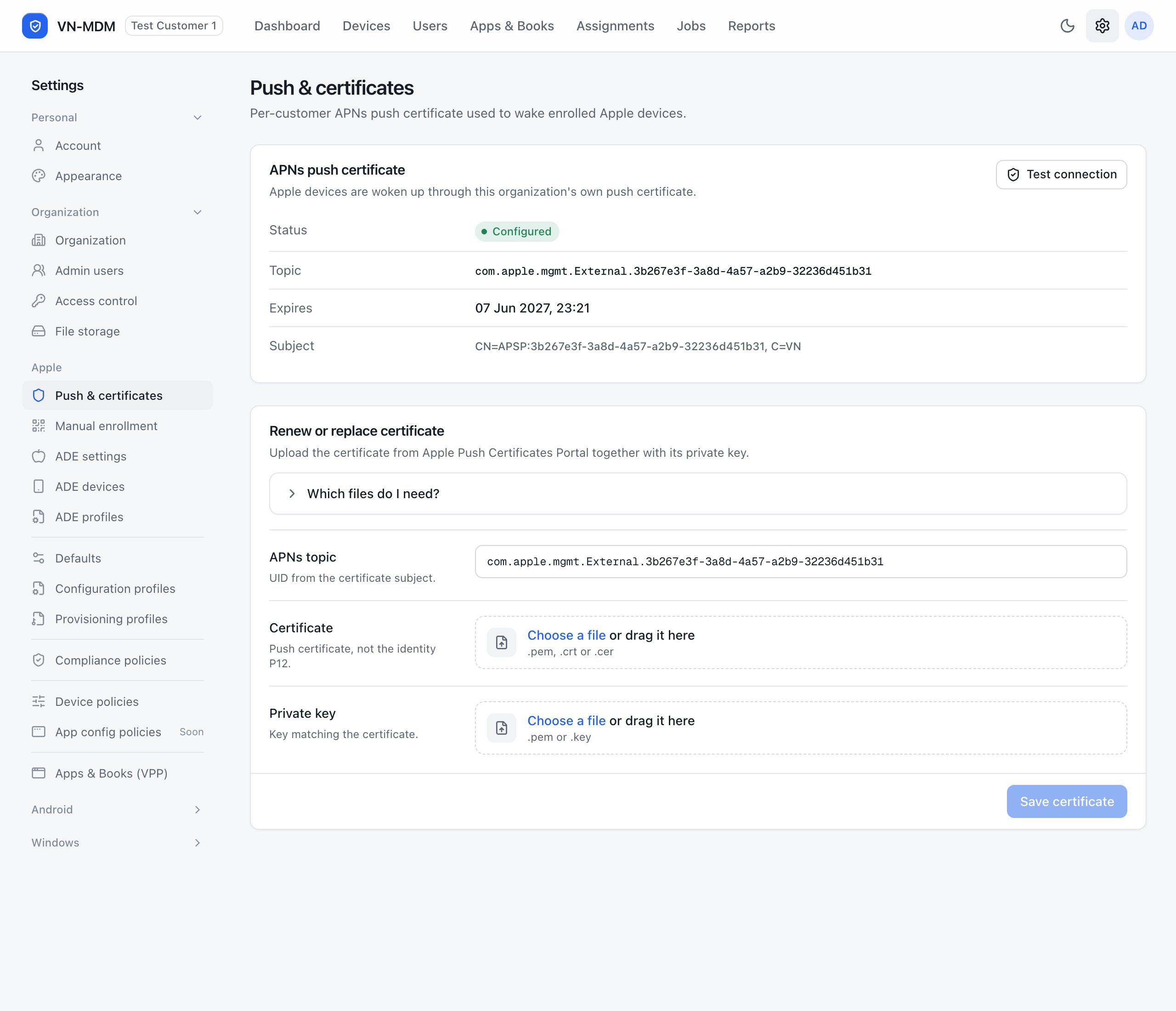
Where Apple is configured. The left column is the list of items. The open page is Push & certificates, status Configured, with the expiry on the Expires row. -
Learn about and choose your management mode (Supervised or Unsupervised) and enrollment method in the sections below.
-
Enroll the device using the selected method. When finished, the device appears under Devices with status Enrolled.
-
Assign Wi-Fi, restrictions, a screen passcode, or apps. See Configuration profiles, Device policies, and Apps.
Two management modes on Apple
When enrolled into VN-MDM, a device operates in one of two modes with distinctly different levels of control:
1. Supervised Mode — Full control for company-owned devices
This is Apple's highest management tier for devices fully owned by the organization, enabling the strictest policies:
- Strict Wi-Fi lockdown: Enforce connection only to a designated corporate Wi-Fi network (blocking all manual connections to unknown networks or personal hotspots), while forcing Wi-Fi to always stay powered on (preventing users from turning Wi-Fi off in Settings or Control Center).
- Anti-removal protection: Management profile is locked. Users cannot remove the MDM profile in Settings.
- Advanced management capabilities: Enable Lost Mode with remote device location tracking, remote lock, remote wipe (Wipe), silent app installation without an Apple ID on the device, device renaming, wallpaper setting, and App Store disabling.
- Mandatory rule: The device must be factory reset at the beginning of activation to enter Supervised mode. An active device in everyday use cannot be converted to Supervised without being wiped.

2. Unsupervised Mode — For personal devices (BYOD)
Suitable for personal employee devices or active devices where wiping data is not an option. Users simply open a link in Safari or scan a QR code to complete enrollment without resetting the device.
What administrators CAN DO in Unsupervised mode:
- Remotely lock the device (Lock Device): Admins can send a command to lock the phone screen immediately if a security risk is suspected or if the device is left unattended.
- Remotely erase the device (Initialize Device / Wipe): Remotely wipe the device clean in the event of theft or sudden employee departure to protect corporate data.
- Clear screen passcode (Clear Passcode): Remove the screen lock passcode so the user can regain access if forgotten, without restoring the device.
- Enforce screen passcode policy (Passcode Policy): Require devices to set a screen lock passcode meeting organizational standards (minimum length, complexity, auto-lock timeout).
- Push Wi-Fi, VPN, and corporate Email: Pre-configure corporate Wi-Fi (for auto-joining at the office), VPN profiles, and work mailboxes (Exchange/IMAP) without manual setup by the user.
- Distribute and remove corporate apps: Assign enterprise or App Store apps to the device (a prompt asks the user to accept installation), and remotely remove managed apps when necessary.
- Device inventory: Inspect hardware attributes, iOS version, installed configuration profiles, and installed applications.
- Change roaming (Change Roaming Settings): Turn voice and data roaming on or off on an iPhone. Supervision is not required.
Limitations compared to Supervised mode:
- Users can remove management at any time: The person holding the device can go to Settings → General → VPN & Device Management and tap Remove Management at any time without admin approval.
- Cannot force Wi-Fi on or restrict to 1 Wi-Fi: Admins can only push Wi-Fi configurations for auto-joining, but users can still turn off Wi-Fi or connect to other Wi-Fi networks at will.
- No Lost Mode support: Cannot force GPS location tracking on a lost device (Lost Mode).
- Cannot remotely restart, shut down, rename, or set the wallpaper: Restart Device, Shut Down Device, Change Device Name, and Setting Wallpaper require Supervised mode. The command box hides them.
Four device enrollment methods
Depending on device origin (purchased from authorized resellers or retail) and organization accounts available, choose one of four paths:
Path 1: Automated enrollment via Apple Business Manager (ABM / ADE) — Best for company devices
- Resulting mode: Supervised.
- Can it be done remotely: Yes, 100% remotely.
- How it works: When the organization purchases devices through Apple Authorized Resellers (AAR), the reseller assigns device serials directly to the organization's ABM account. Admins assign an ADE profile in VN-MDM. When employees unbox a new device or tap Erase All Content and Settings on an existing device, connecting to Wi-Fi presents the Remote Management screen and automatically enrolls into the system. See What ABM is and Connect ADE.
Path 2: Apple Configurator on iPhone (iOS 16+) — For retail devices
- Resulting mode: Supervised (added to ABM).
- Can it be done remotely: No, requires direct physical proximity.
- How it works: For company devices purchased from retail stores (not assigned by a reseller), where the company already has an ABM account. An IT admin installs Apple Configurator from the App Store on their iPhone and signs in with the ABM account. The employee's device is wiped to the Hello screen, language and Wi-Fi are selected until the blue animating cloud appears. The admin holds their iPhone camera up to scan the cloud to assign the device to ABM.
Path 3: Apple Configurator on Mac (USB Cable) — Without an ABM account
- Resulting mode: Supervised (local supervision).
- Can it be done remotely: No, requires a USB cable connected to a Mac.
- How it works: For organizations that have not yet registered an Apple Business Manager account (no D-U-N-S number) but still want strict Supervised enforcement. Connect the iPhone/iPad to a Mac with a USB cable, launch Apple Configurator, click Prepare, and select Supervise devices. The device will be wiped and supervised. Then, scan a manual enrollment QR code to bring it into VN-MDM.
Path 4: Manual enrollment via Safari link or QR code — Quick, no wipe
- Resulting mode: Unsupervised (unless previously supervised in Path 3).
- Can it be done remotely: Yes, send the link via message or scan the QR code.
- How it works: Go to Settings → Apple → Manual enrollment, click New token, and send the link or provide the QR code for Safari. The user downloads the profile and installs it in Settings. Existing device data is preserved. See Manual enrollment.
Comparison of the 4 enrollment methods
| Criteria | Path 1: ABM / ADE | Path 2: Configurator iPhone | Path 3: Configurator Mac | Path 4: Link / QR code |
|---|---|---|---|---|
| Management mode | Supervised | Supervised | Supervised | Unsupervised |
| Can be done remotely? | Yes (100% remote) | No (scan device screen) | No (plug in USB cable) | Yes (send link/QR) |
| Requires factory reset? | Yes (mandatory) | Yes (mandatory) | Yes (mandatory) | No (preserves data) |
| Requires ABM account? | Required | Required | Not required | Not required |
| 1 Wi-Fi & Force Wi-Fi On? | Supported | Supported | Supported | Not supported |
| Prevent user from removing MDM? | Yes (locked) | Yes (locked) | Yes (locked) | No (user can remove) |
| Lost Mode & remote wipe? | Supported | Supported | Supported | Not supported |
| Button in VN-MDM | Apple, automated (ADE) | Apple, automated (ADE) | iPhone, iPad or Mac | iPhone, iPad or Mac |
The Enroll device button
On Dashboard or Devices, click Enroll device. The menu asks which kind of device you are adding.
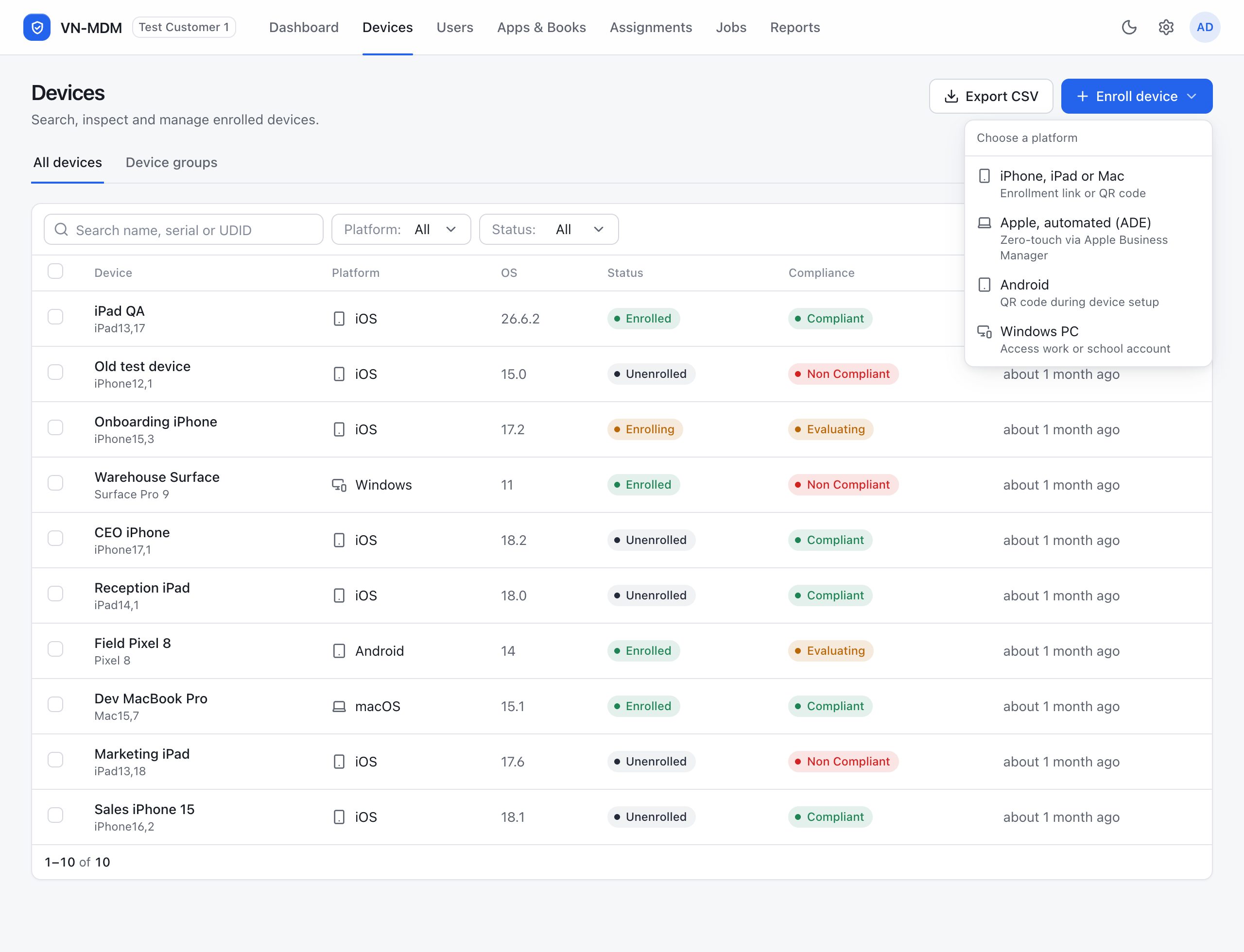
What the left column of Settings → Apple is
You do not need to open every item right away. This table says which item serves which job.
| Item | Use it when |
|---|---|
| Push & certificates | Check or replace the push certificate. |
| Manual enrollment | Create a link or a QR code so an employee installs the profile. |
| Apple Business Manager | Read this before you connect ADE or an app token. It is not an item in the Settings column. |
| ADE settings | Connect the device path of Apple Business Manager. |
| ADE devices | See the Apple devices that have synced in. |
| ADE profiles | Choose which screens appear when the device is turned on for the first time. |
| Defaults | Profiles and policies every Apple device in the organization receives. |
| Configuration profiles | Write Wi-Fi, a web icon, restrictions, VPN, and similar settings. |
| Provisioning profiles | The signing profile that goes with an app the company built. |
| Compliance policies | Rules that say whether a device is meeting them. |
| Device policies | Make the device set a screen passcode, or update the operating system. |
| App config policies | Labeled Soon. Not usable yet. |
| Apps & Books (VPP) | Upload a token so you can assign apps in bulk, without an Apple Account on each device. |
Common questions
- Can I restrict the device to connect only to 1 specific Wi-Fi and prevent users from turning Wi-Fi off?
- Yes, but the device must be in Supervised mode (Path 1, Path 2, or Path 3). After enrollment, assign a configuration profile with company Wi-Fi credentials and restrictions enforcing Wi-Fi to stay powered on and joining allowed networks only. If a device is enrolled manually in Unsupervised mode (Path 4), iOS security restricts MDM from enforcing these limitations.
- Can an active device be put into Supervised mode remotely?
- Only if the device's serial number is already registered in Apple Business Manager (Path 1). In that case, the employee simply taps Erase All Content and Settings on the device. If the device was bought at retail and is not in ABM, it cannot be supervised 100% remotely; physical proximity using Apple Configurator (Path 2 or Path 3) is required.
- Is there any way to make an employee's device Supervised without wiping their data?
- No. Apple's security model strictly mandates that any device entering Supervised mode must undergo a factory reset to ensure the user is fully aware the device is being placed under corporate ownership and management. Advise users to back up important data to iCloud or a computer beforehand.
- What if our company does not have an Apple Business Manager account yet?
- Use Path 3: Connect the device to a Mac using a USB cable and run the free Apple Configurator app to Prepare the device with Supervise devices. This method does not require an ABM account or a D-U-N-S number.
- Is Mac covered in these pages?
- The Apple menu is shared by iPhone, iPad, and Mac. The pages in this set are written for iPhone and iPad. Steps that are only for Mac will come later.