Supervise without ABM
Put an iPhone into supervised mode with Apple Configurator when there is no Apple Business Manager and no ADE. A restriction profile only turns off factory reset inside Settings. Prepare or Erase in Configurator can still wipe the phone, and the phone does not come back into management.
Before you prepare
Settings → Apple → Push certificate must be Configured.
Settings → Apple → ADE settings, the Enrollment identity block must be Generated. Do not upload a key to Apple Business Manager. Do not click Regenerate identity after phones are already in use.
Settings → Apple → Configuration profiles. Create a Restrictions profile with Status Active. Turn off Allow Erase All Content and Settings. Leave camera, app installation, screenshots, and AirDrop on if the person still uses the phone normally. The profile in the lab pictures is named Trả góp — cấm xóa trắng. Use any name you want.
Supervise with Apple Configurator
Plug an unlocked iPhone into a Mac with Apple Configurator. The first time, trust the computer on the phone. Prepare erases the phone. Do this before the phone holds data you need to keep.
Select the phone and click Prepare. Prepare with is Manual Configuration. Turn on Supervise devices. Turn on Allow devices to pair with other computers if your other Macs must plug in later. Turn it off if a stranger’s Mac should not pair after Trust — your Macs then need the supervision identity. Turn off Add to Apple School Manager or Apple Business Manager.
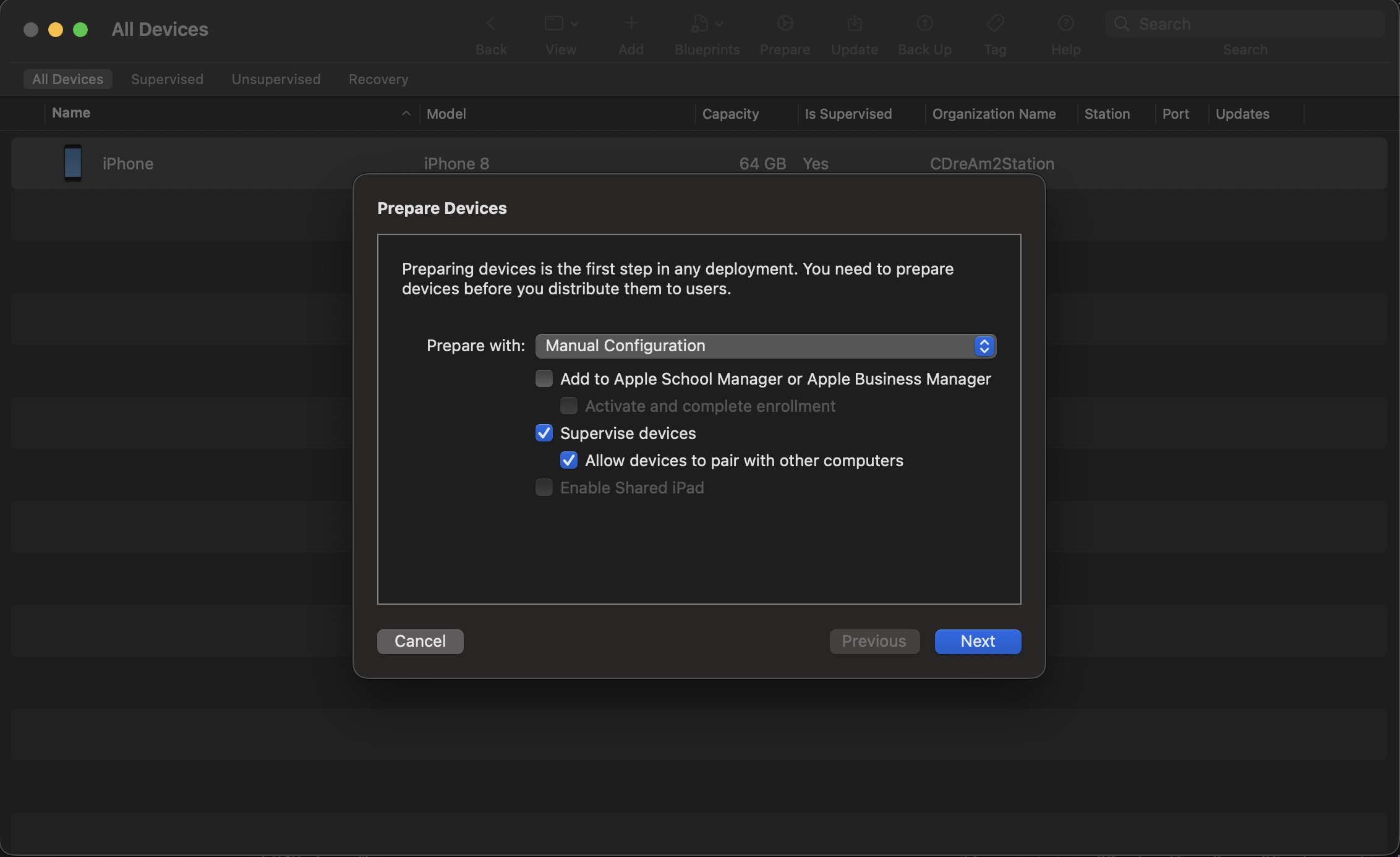
Do not add the phone to Apple Business Manager. The organization name on the row behind the dialog is from an earlier prepare. On Enroll in MDM Server, choose Do not enroll in MDM. The management profile is installed later in Safari.
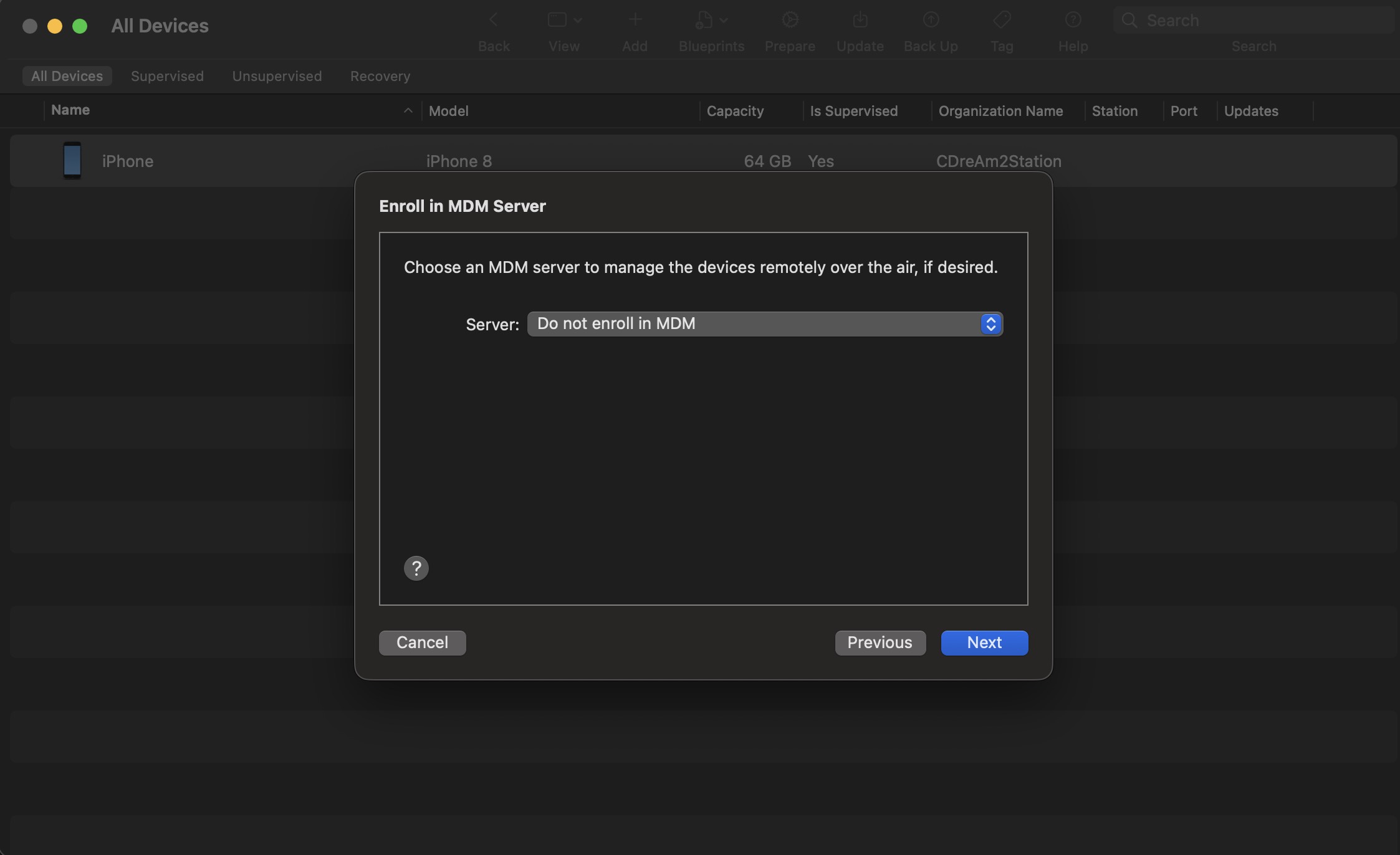
Do not pick an MDM server in this step. If Apple Business Manager sign-in appears, click Skip.
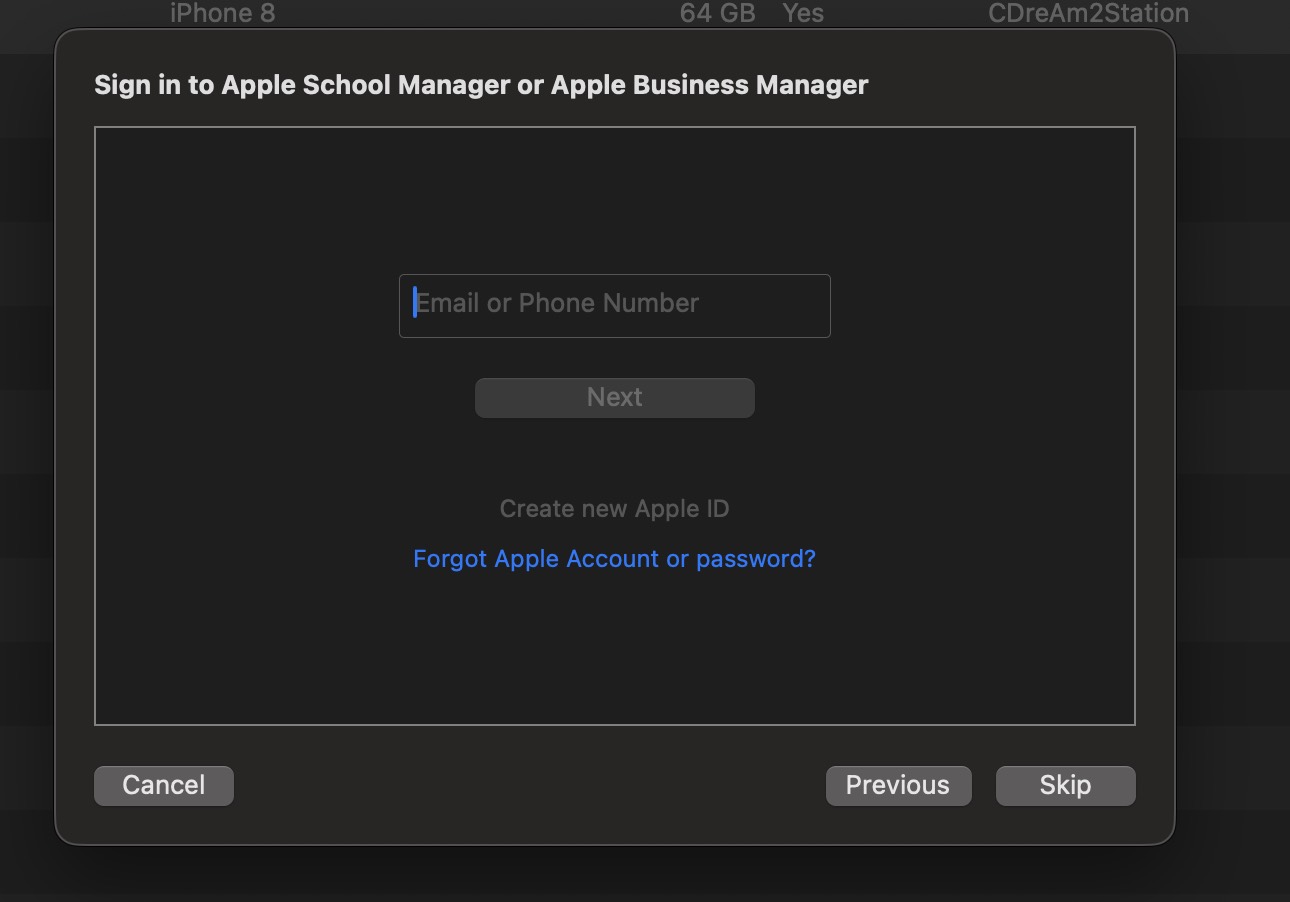
Skip. This scenario does not use an Apple Business Manager account. Create the organization. Only the name is required — that name appears on the phone. Export the supervision identity: Settings → Organizations, select the organization, Export Supervision Identity. Store the file and the password. An admin Mac uses that file to remove profiles later. Another Mac does not need the file to Erase.
Click Prepare. If the phone was prepared before, Configurator asks for Erase. Erase deletes everything on the phone. Stop when Is Supervised is Yes.
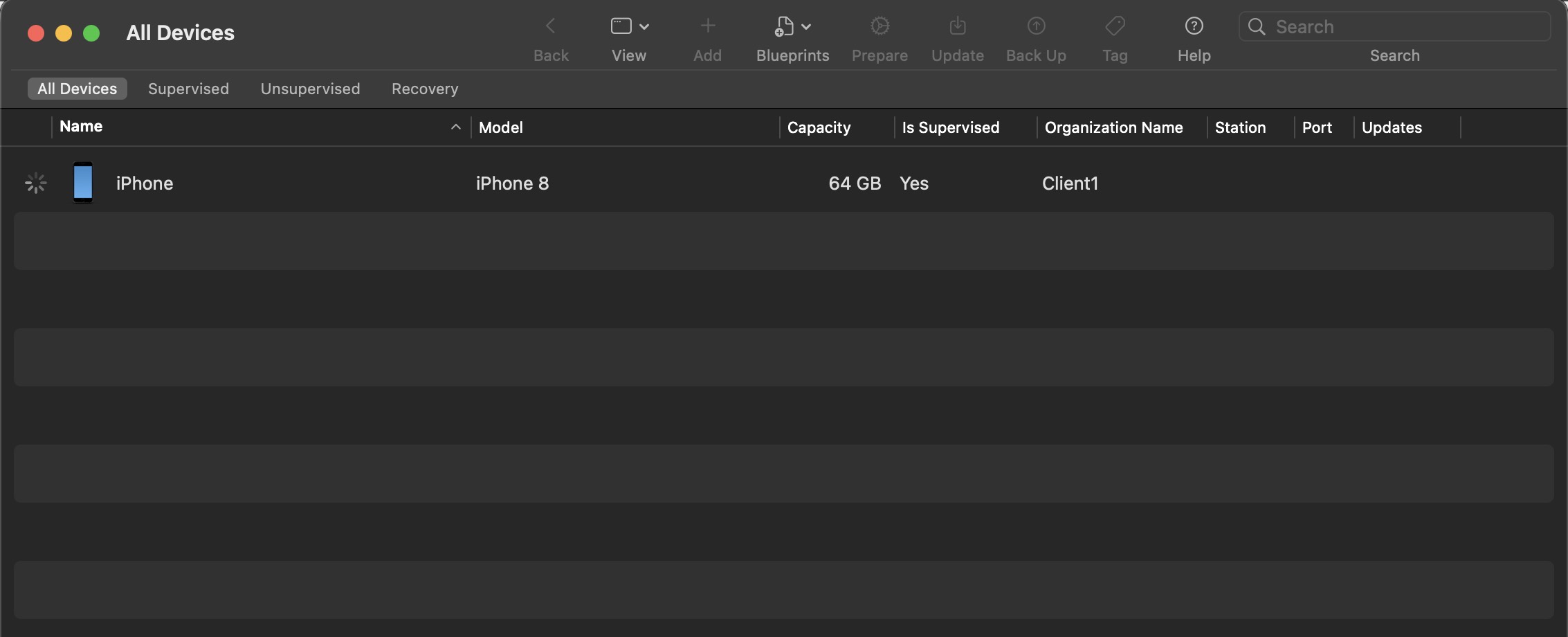
Client1 is the organization name from the lab. Use your own organization name. Is Supervised must be Yes.
Bring the phone into the panel
On the iPhone, finish the hello screens and join Wi-Fi.
Settings → Apple → Manual enrollment → New token. Status Active. Copy the link, open it in Safari on the iPhone, allow the download, and install VN-MDM Device Management. The unsigned warning is expected.
Devices: the phone is Enrolled and shows a Supervised badge. If Supervised is missing, Prepare was not finished.
Turn off factory reset in Settings
Open the phone → Send command → Install Configuration Profile → choose the Restrictions profile → Run now → Send.
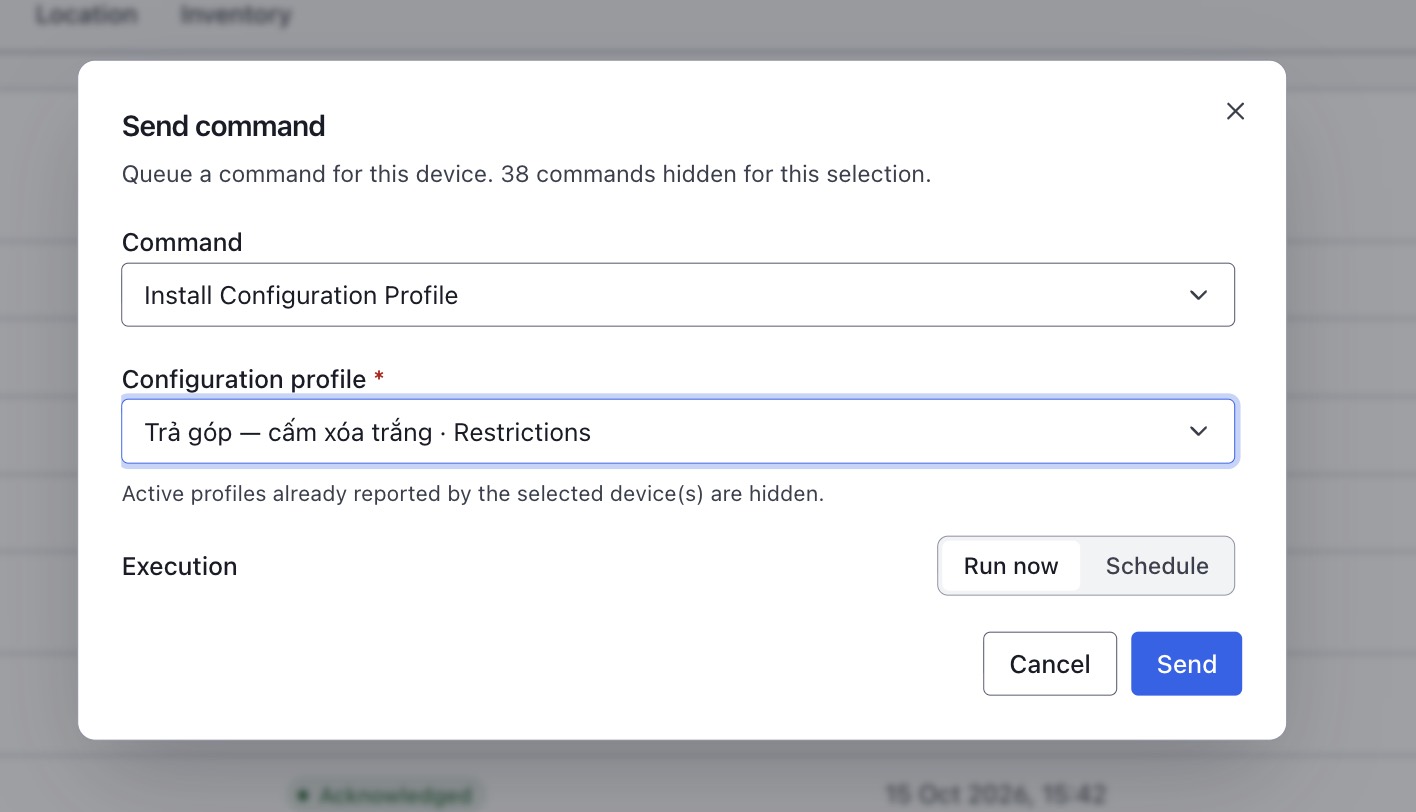
One phone. Run now, then Send. The hidden-command count on the shot is for that supervised lab phone, not a fixed product number. For many phones: on the profile row click Assign to group, set Target type to Entire customer, then Assign.
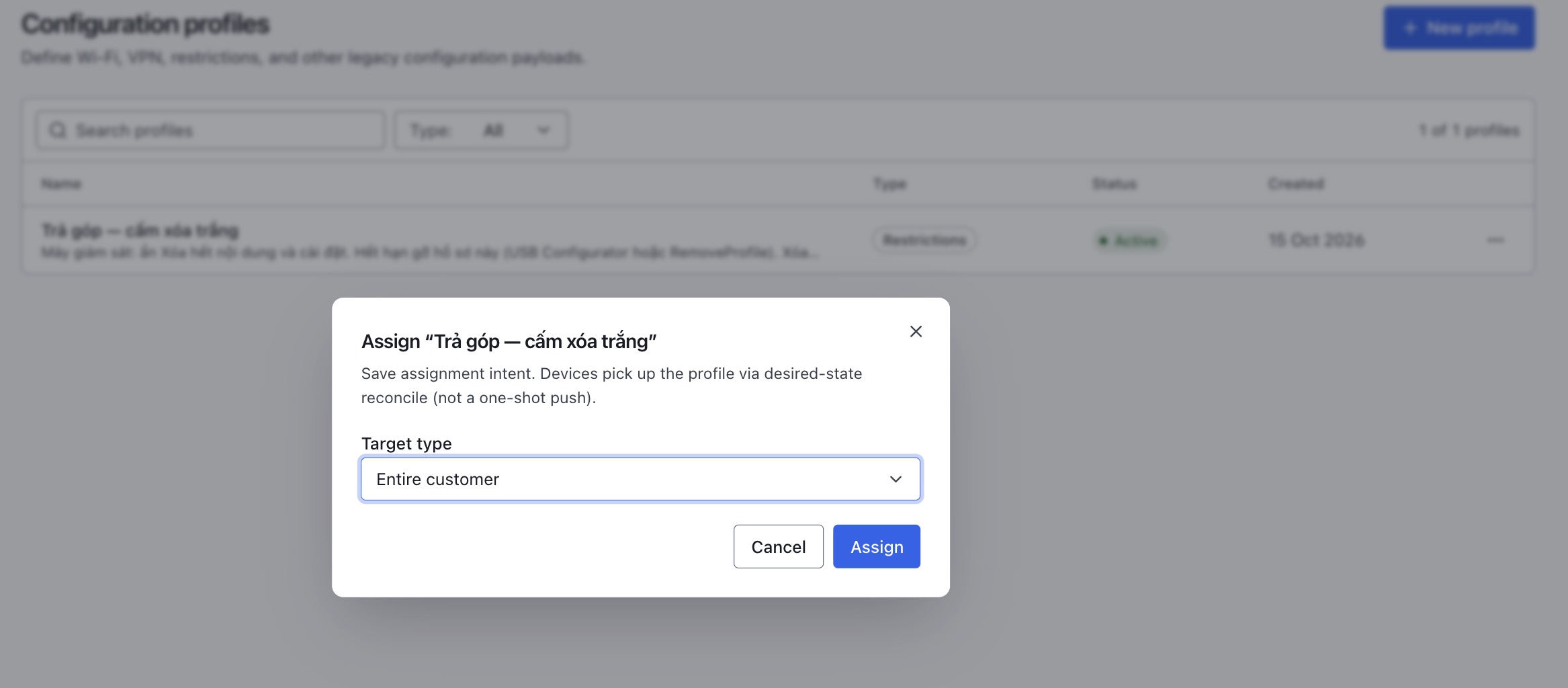
Assign to every enrolled device of this customer. On the Commands tab, wait for Acknowledged. Pending means the phone has not picked the command up. Leave the phone on Wi-Fi and reload the page. Do not send it again while the old row is still Pending.
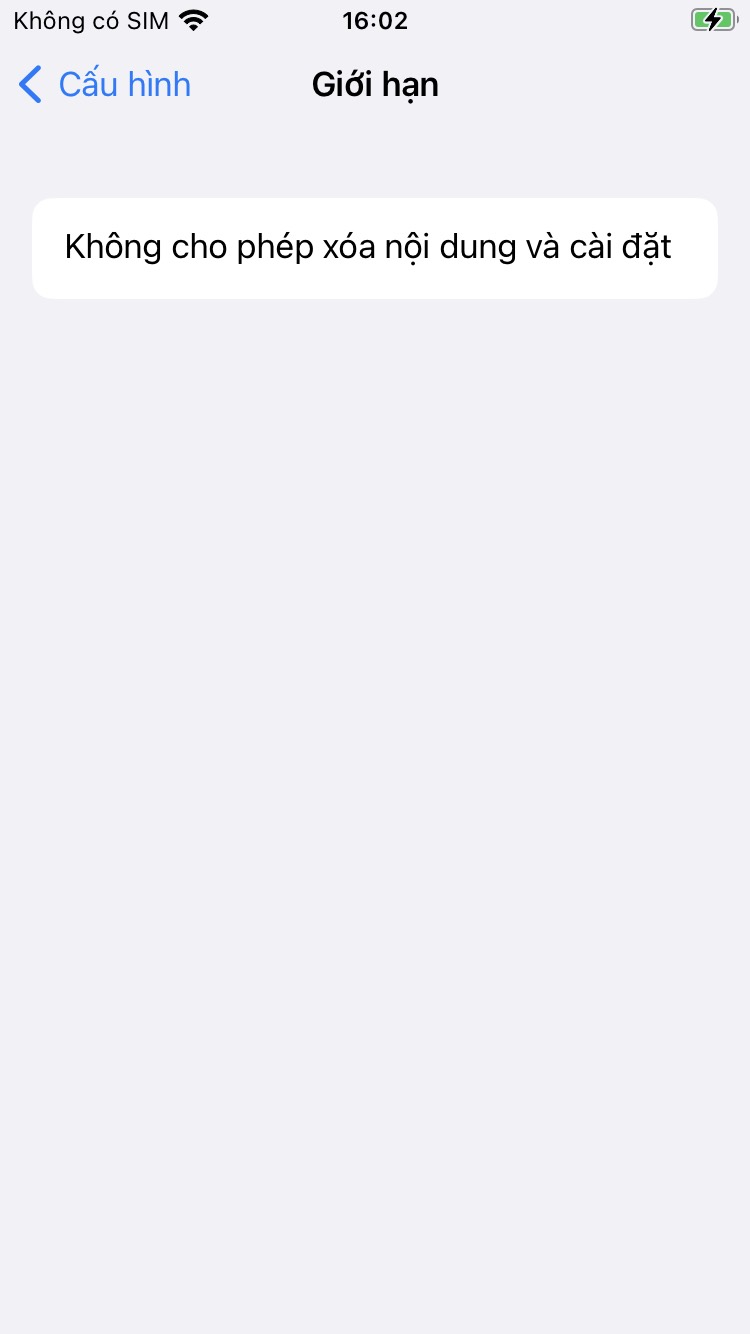
On the iPhone: Settings → General → VPN & Device Management → the profile → the restrictions row. It must say erasing content and settings is not allowed.
The restriction profile is on the phone. Settings → General → Transfer or Reset iPhone. Erase All Content and Settings is visible and cannot be tapped.
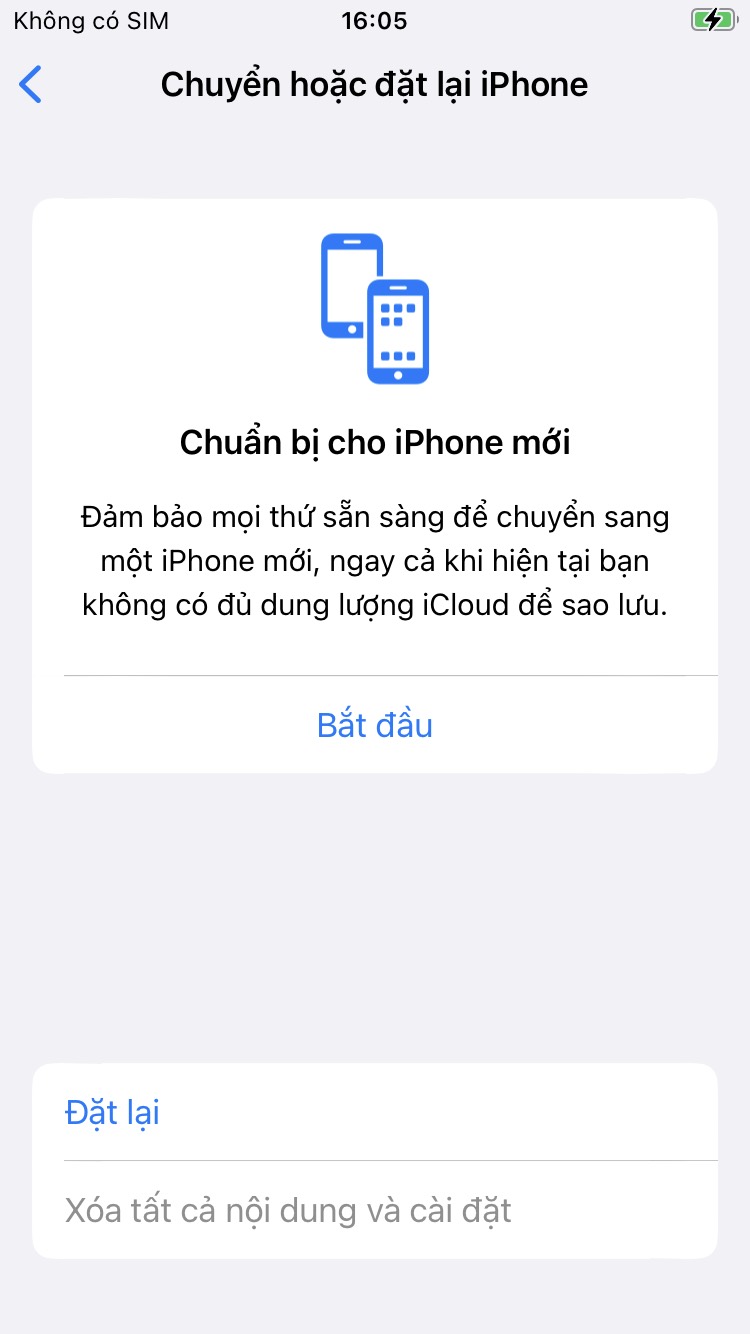
Only the Settings row is turned off. This is not a lock against Configurator.
What this path does not block
The same management screen still has Remove Management. Tapping it also removes the restriction profile, and factory reset in Settings can be tapped again.
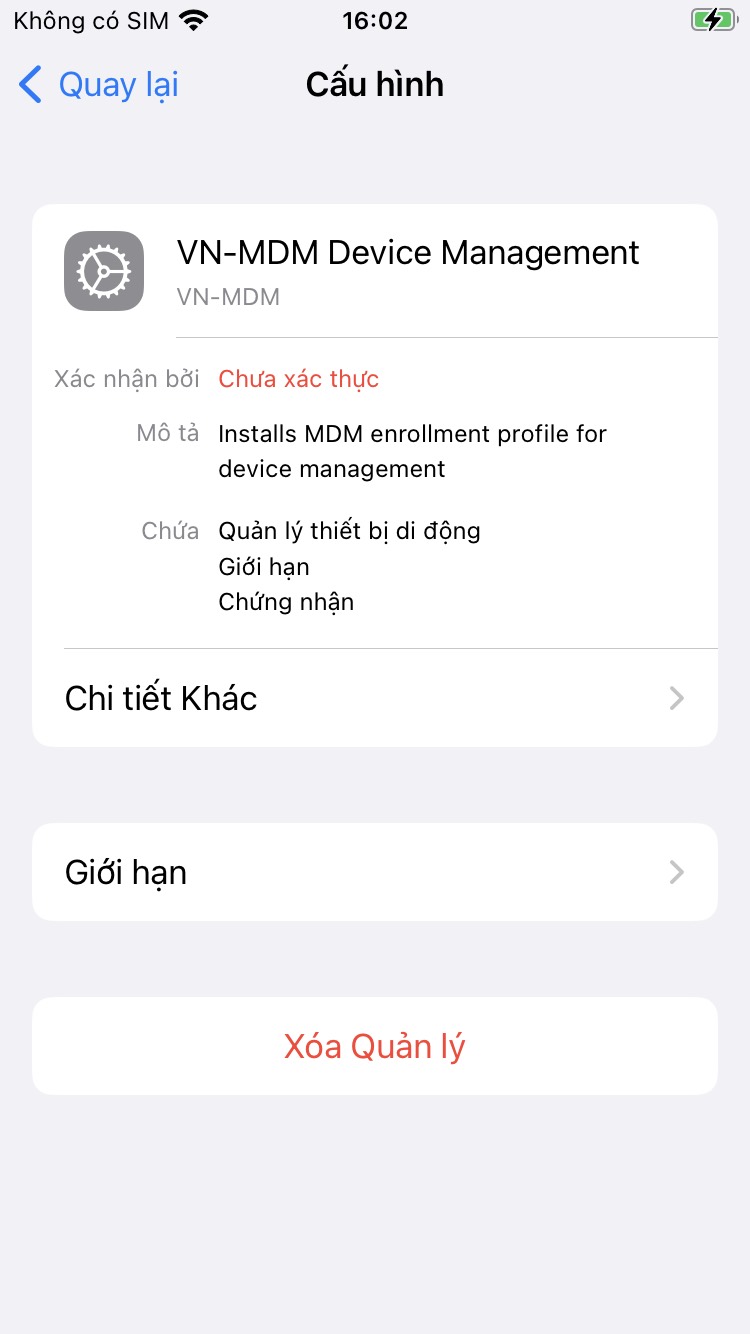
Without ADE this button stays. Safari and Configurator both reject an enrollment profile marked non-removable. Plug the phone into another Mac that has Apple Configurator, with no organization and no certificate. After the iPhone taps Trust, that Mac can still Erase. The phone is then unsupervised and does not enroll again.
Turn off Allow devices to pair with other computers at Prepare if a stranger’s Mac should not pair after Trust. Recovery mode on a computer can still erase the phone.
When you stop managing the phone
Plug the phone into a Mac that has this organization’s supervision identity.
Apple Configurator: Actions → Remove → Profiles. Remove the management profile and the restriction profile. Photos and messages stay on the phone.
In the panel the phone leaves Enrolled. Only then Delete the row. The dialog says this does not factory-reset the hardware.
The supervised line under About stays until the person erases the phone. Erase in Settings can be tapped again because the restriction profile is gone.
Common questions
- Safari says the MDM profile must be removable, or Configurator says the profile is invalid?
- Do not mark the enrollment profile non-removable. Install the normal Manual enrollment link. Turning off factory reset in Settings is a separate Restrictions profile, sent after the phone is Enrolled.
- Does deleting the row in the panel unmanage the phone?
- No. Delete only removes the row. The profile stays on the iPhone until it is removed on the phone.
- Why can a Mac with no certificate still Erase?
- The supervision certificate does not block Erase. The restriction profile only dims factory reset inside Settings. Erase in Configurator and recovery mode do not go through that row.