ABM flow
Connect Apple Business Manager to VN-MDM so an assigned phone enrolls itself when it is turned on or after a wipe. The ADE profile turns off MDM removal. The person you delegate can assign and unassign phones, and cannot release a phone from the organization.
Connect the MDM service
Use an Apple Business administrator, not the assign-only person.
Settings → Apple → Push certificate must be Configured. Enrollment identity must be Generated.
In Public key certificate, click Generate & download, or Download PEM once Status is Generated.
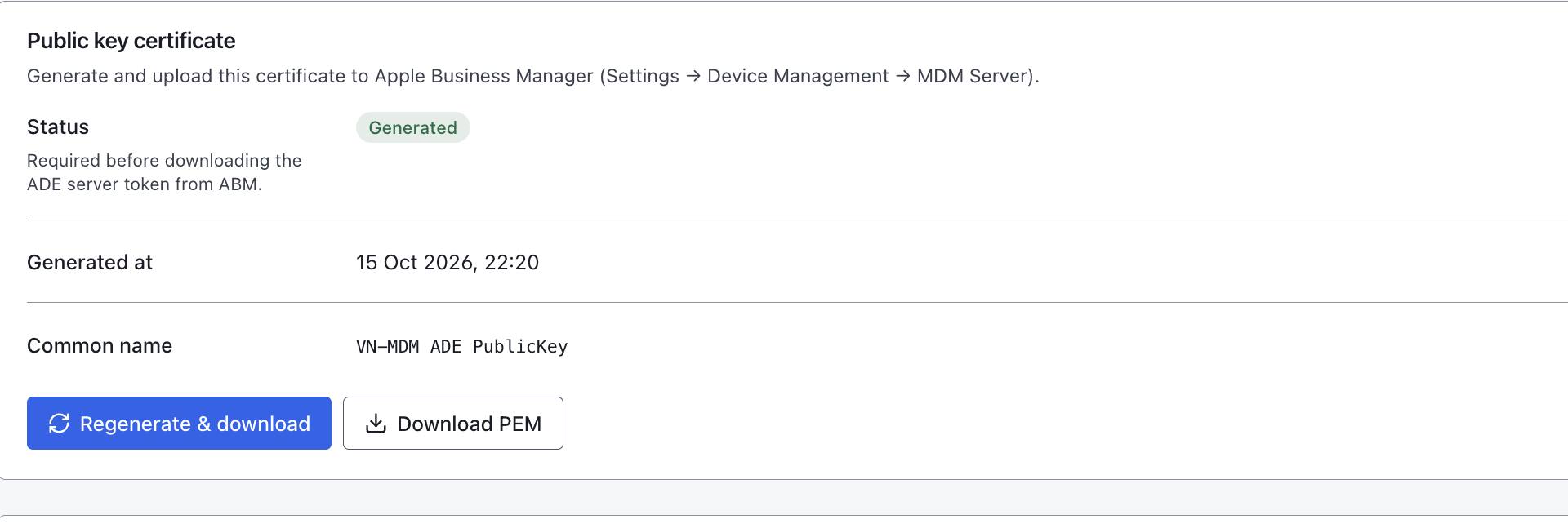
This customer’s public key. Download the PEM file for Apple. Apple Business: Devices → Management Services → add an external service. Name it. Upload the PEM. Leave Allow this service to release devices off if releasing a phone from the organization must be done by a person in Apple Business, not by the MDM service itself.
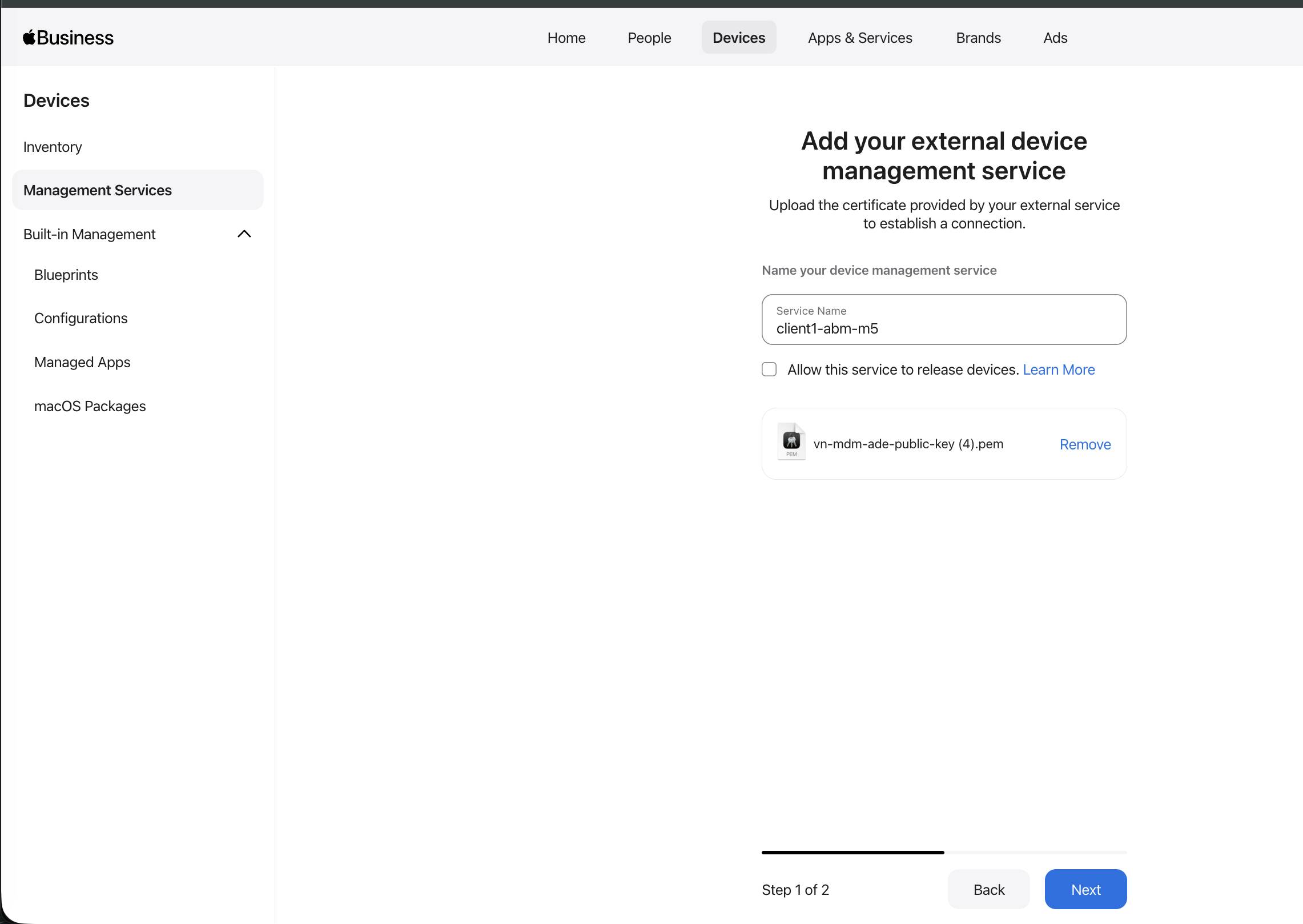
The lab service is named client1-abm-m5. The checkbox that lets the service release devices is off. Step 2: Download Service Token, then Done.
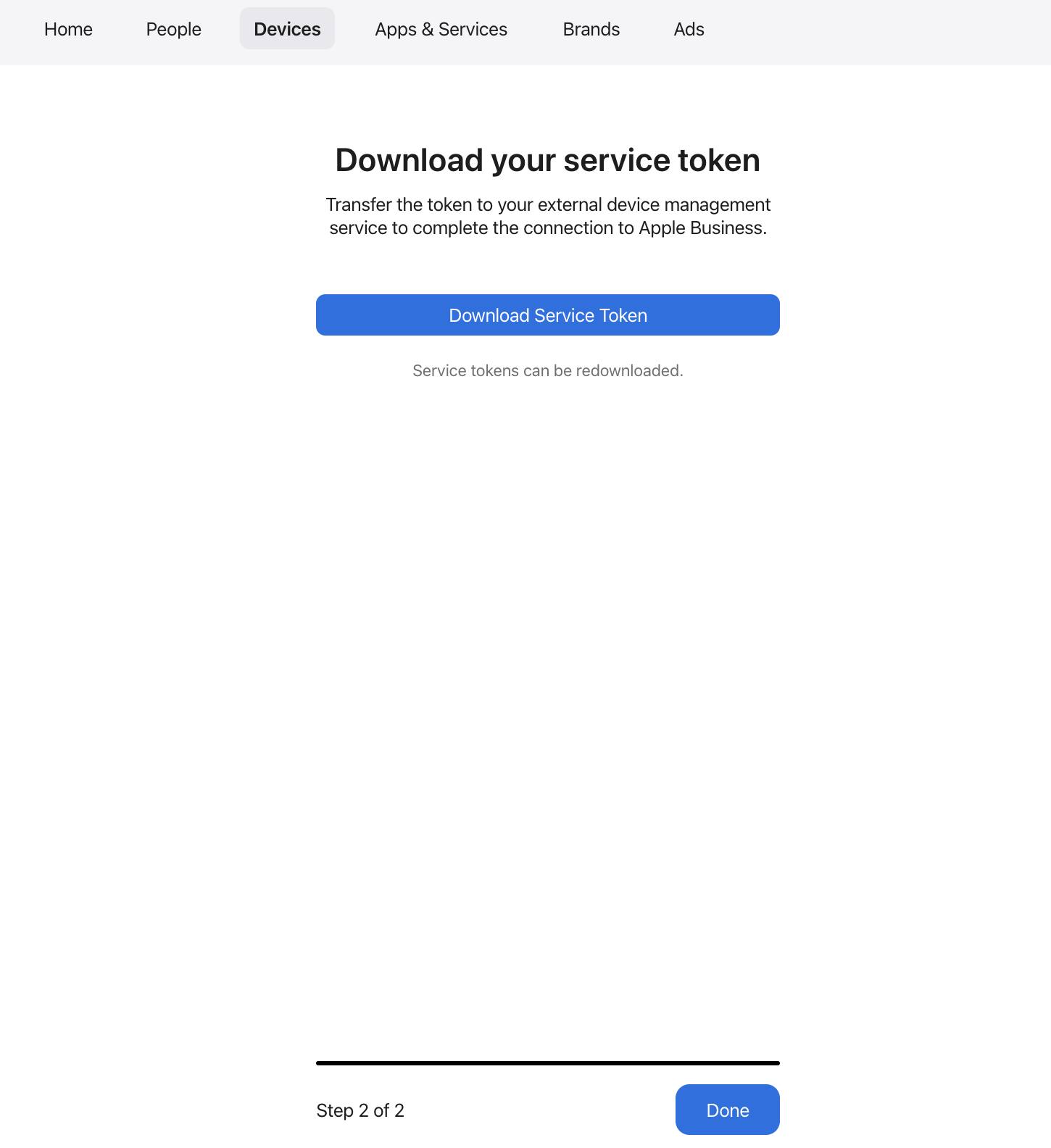
Download the token once and upload it in the panel. Do not open the token file in a text editor. In the panel, ADE server token: upload the .p7m file. Status becomes Configured. Note Token expires.
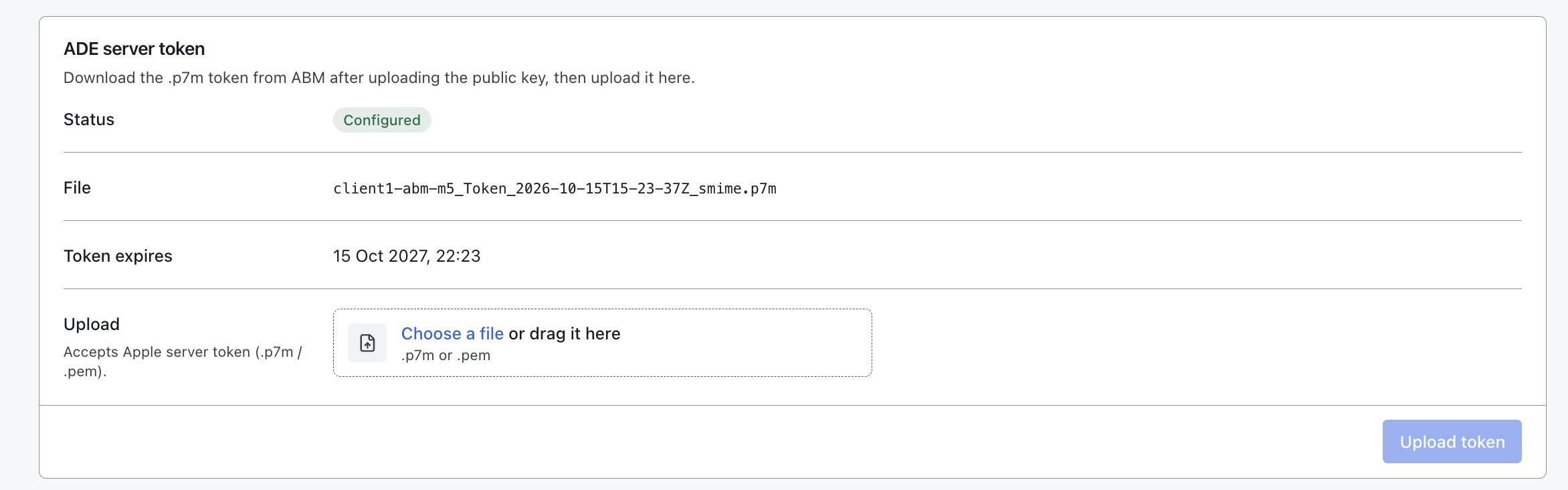
In this lab the token lasts until 15 Oct 2027. When it expires, download a new token from the same Apple service and upload it again. Click Validate. Connection is OAuth configured. Then Full fetch or Diff sync. A toast says the sync finished.
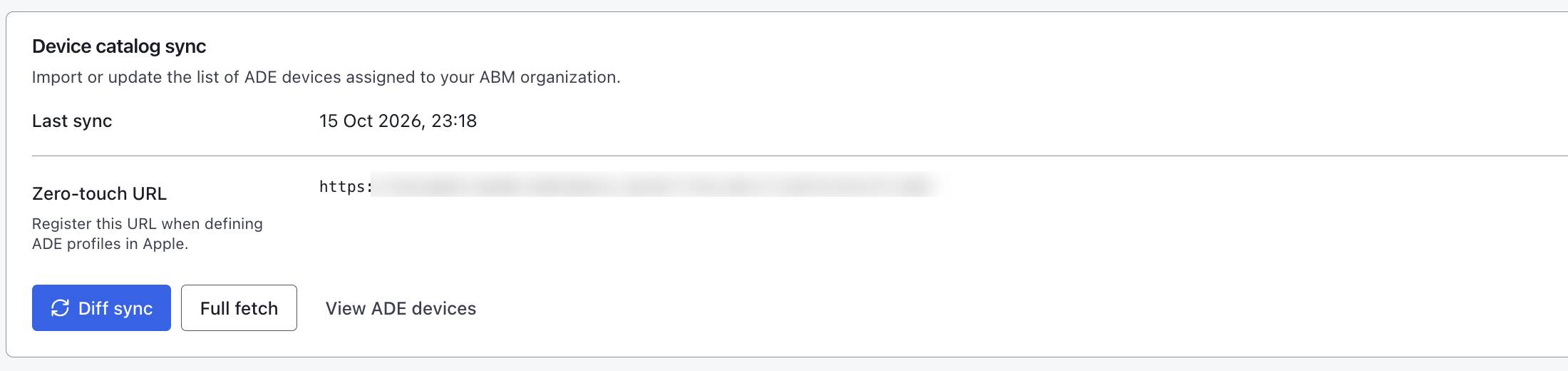
The zero-touch address is blurred. That is the URL Apple calls when the phone downloads the setup profile.
A person who only assigns phones
People → Add a user. Create a Managed Apple Account. Do not use a personal Apple ID.
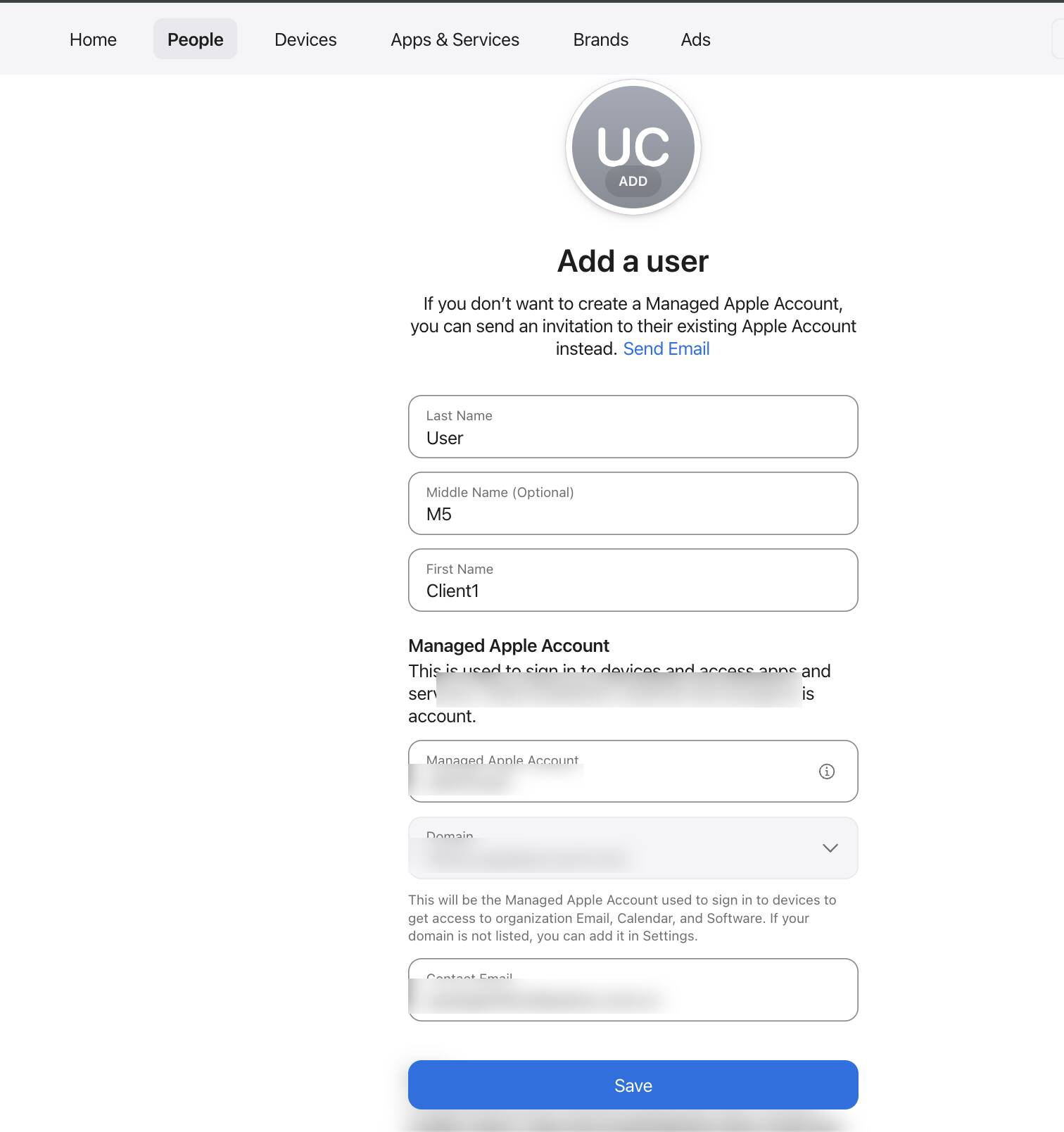
The name and email in the picture are blurred. Use a custom role, not Administrator. The lab role is Device Enrollment Operator.
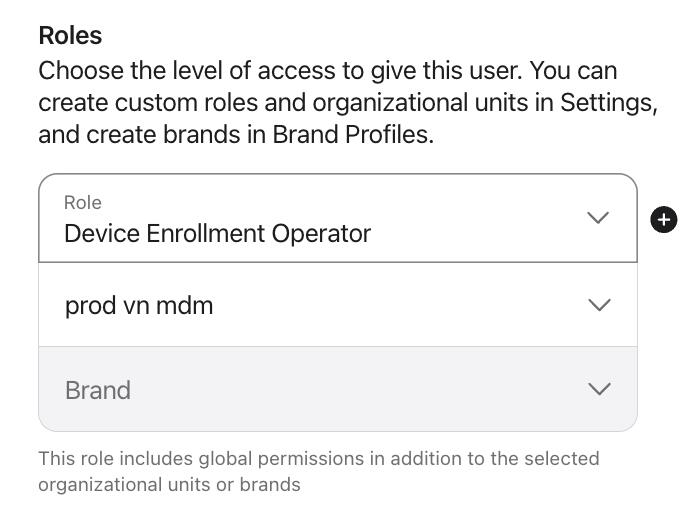
The role is tied to an organizational unit. The unit name in the picture is from the lab. Under Devices, turn on viewing services and adding devices with Apple Configurator, and turn on assigning devices to a service. Turn off Release devices from the organization. Turn off creating, editing, and deleting MDM services.
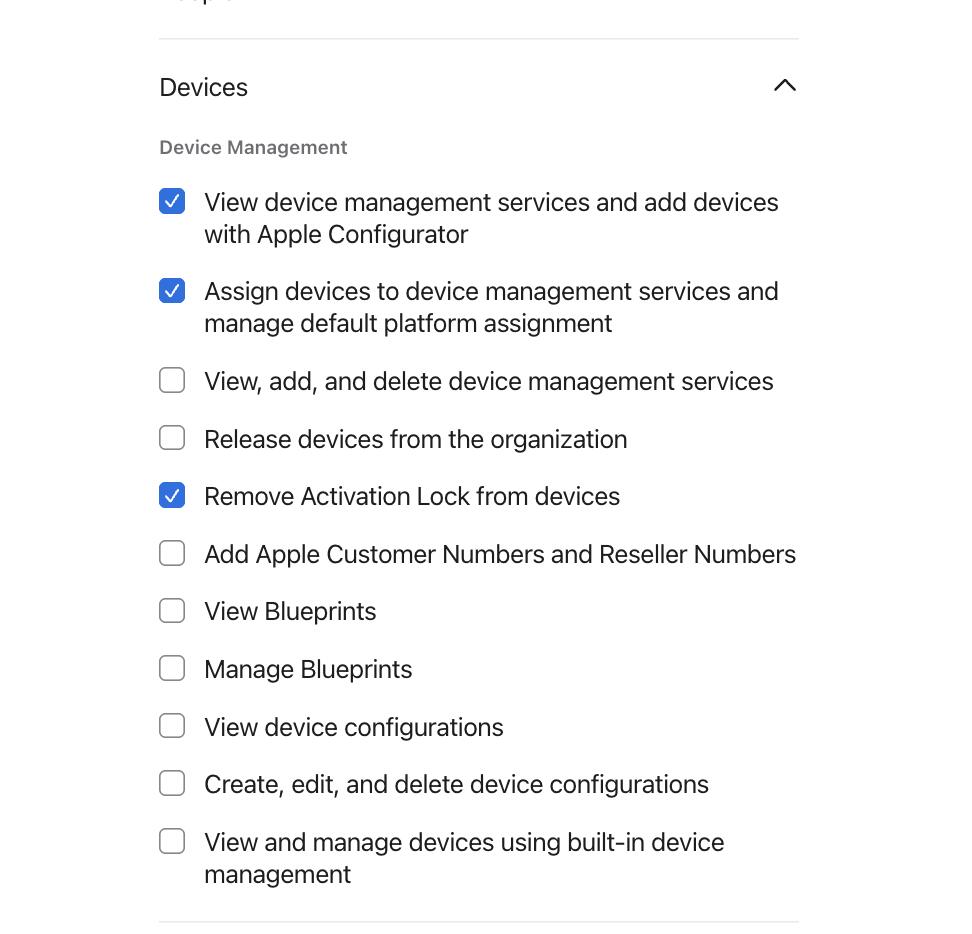
Three boxes are on in the lab, including removing Activation Lock. Release is off. Clear the Activation Lock box if this person must not clear Activation Lock.
Assign a serial to the service
This person signs in to Apple Business. Devices → Inventory, select the phone, Assign Device Management. Choose the service you just connected. Leave Add Deadline unused if you are not setting an enrollment deadline. Continue.
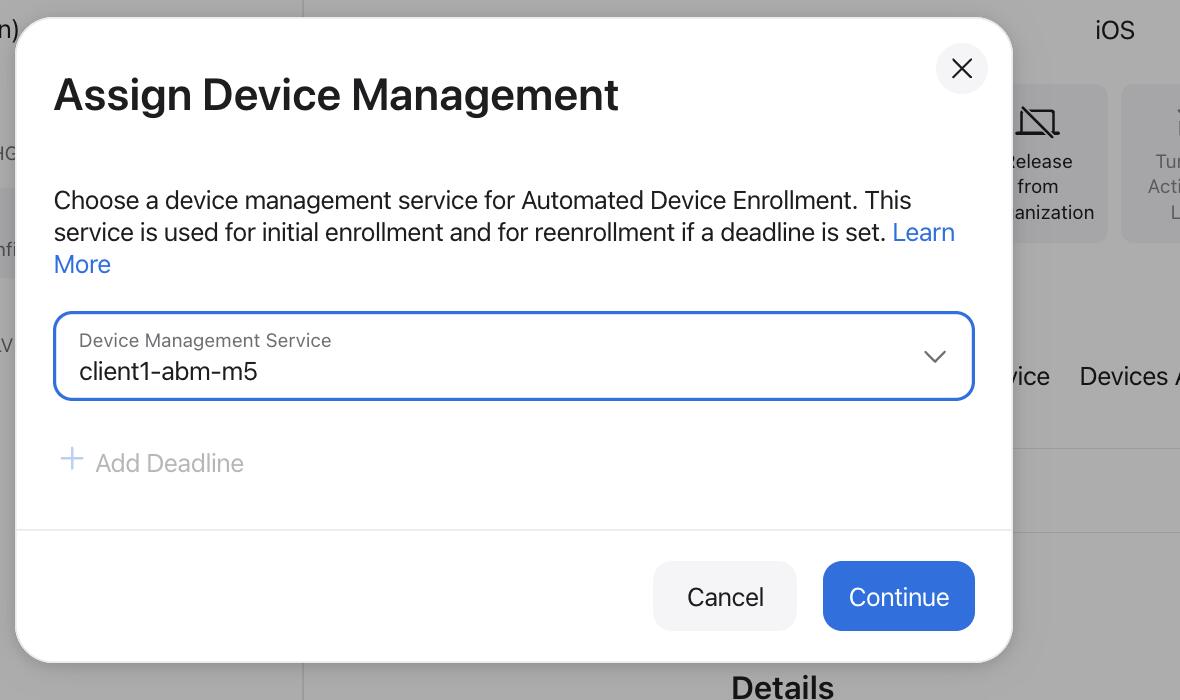
The service is client1-abm-m5. Add Deadline was not set. A retail phone that is not in the organization yet must be added with Apple Configurator first, then assigned to the service. A phone added that way has 30 days, from successful assignment and enrollment, in which the person holding it can release it from the organization.
In the panel, View ADE devices. The serial appears. Profile status is Empty until an ADE profile is assigned to that serial. The MDM column is Enrolled if the phone had already checked in.
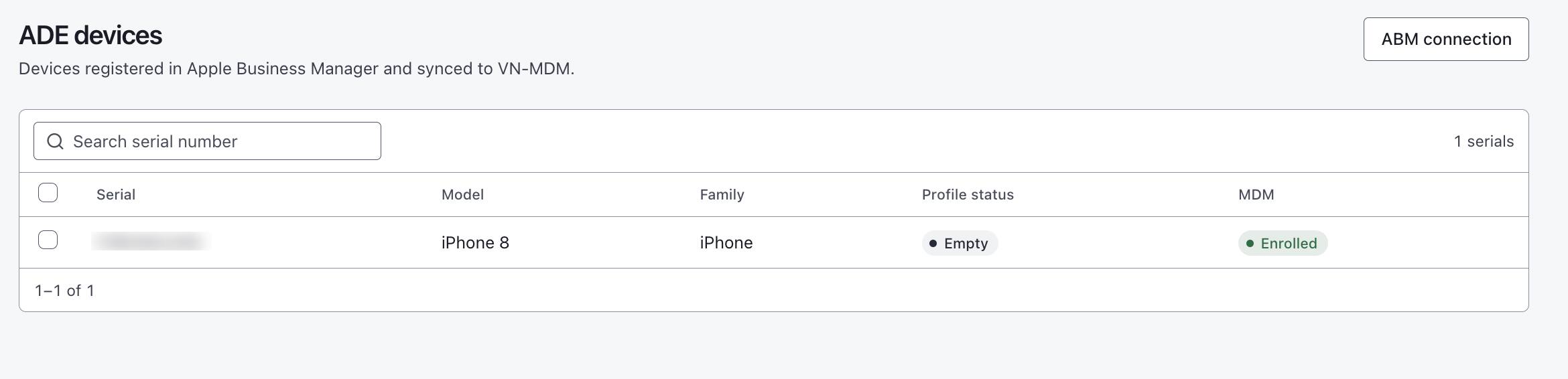
The serial is blurred. Empty means no setup profile is assigned yet. Enrolled in the MDM column means the phone is already on the panel.
Setup profile
Settings → Apple → ADE profiles → New profile. Turn on Supervised device. Turn off Allow MDM profile removal. Set Allow host pairing according to whether you still need USB. Turn on Default auto-assign profile if serials with no profile should receive this one after the next sync.
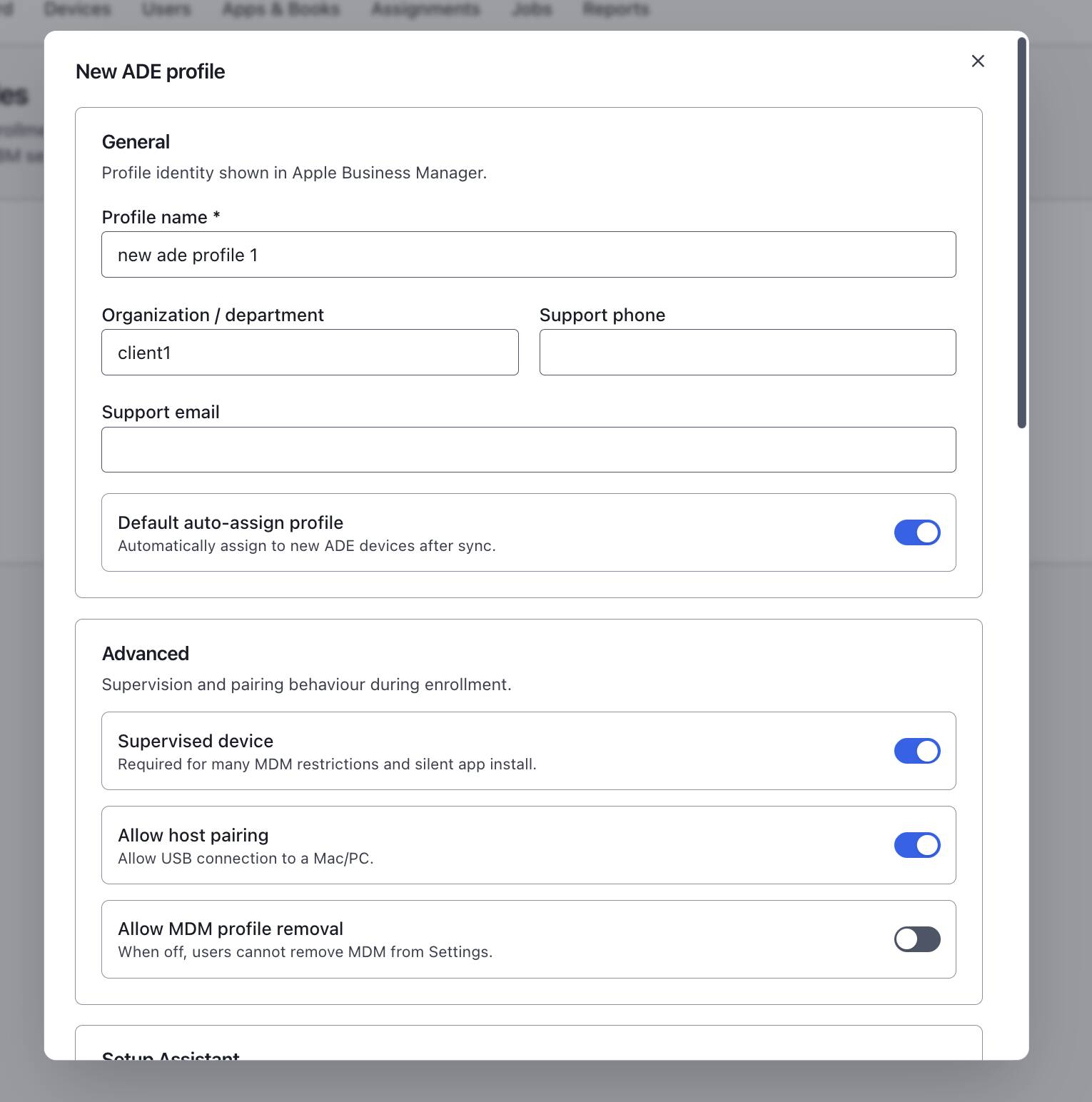
The lab profile is named new ade profile 1. What matters is Supervised on and Allow MDM profile removal off. After you save, the list shows Supervised and an Auto-assign label if it is the default.
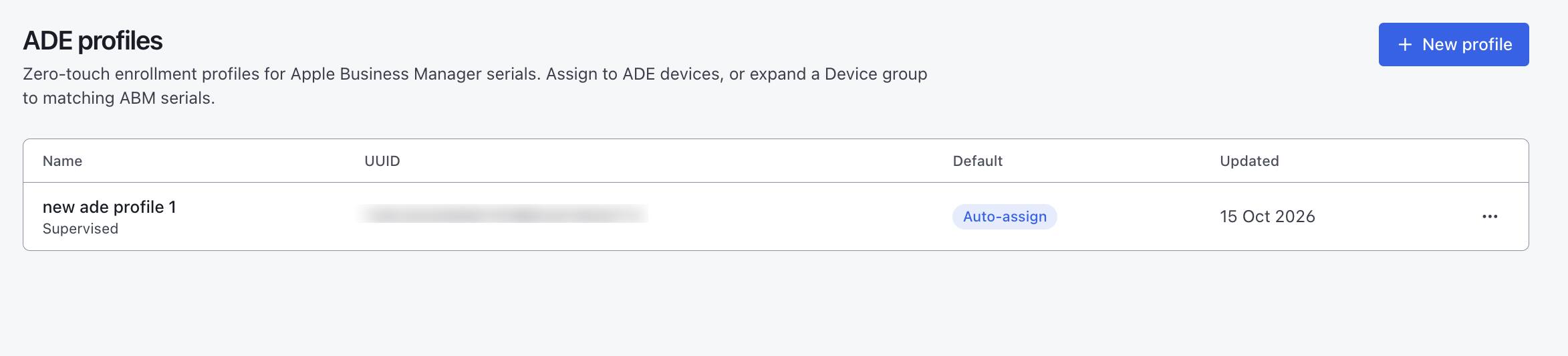
The UUID is blurred. Auto-assign applies to serials that have no profile at the next sync, and it applies during Setup Assistant. This profile does not change a phone already in use. The phone receives it during Setup Assistant: a new phone, or one just wiped, while the serial is still assigned to the service.
On the phone and in the panel
Wipe the lab phone and join Wi-Fi. Remote Management has no skip button.
The device page shows badges Enrolled and Supervised.
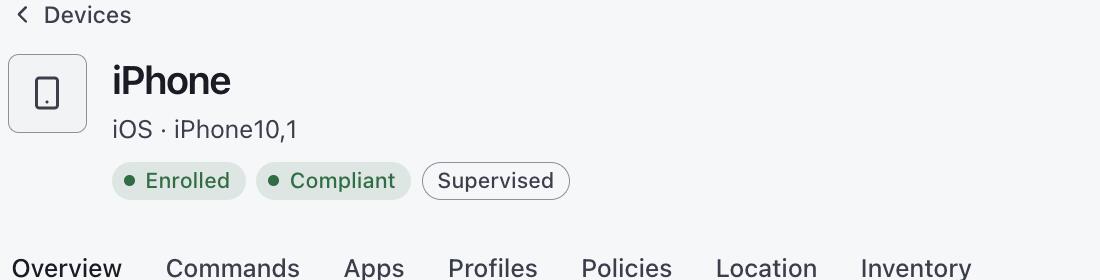
The three badges after the phone is in. This crop has no serial number. In iPhone Settings, the management profile has no remove button when the ADE profile has Allow MDM profile removal off and the phone enrolled through Setup Assistant.
Wipe again while the serial stays assigned: the phone stops at Remote Management and enrolls again.
Take the phone off the service
The assign-only person uses Unassign Device Management. They do not have Release.
A phone that is on still stays managed until the next wipe. After unassign, that wipe has no Remote Management. The serial remains in the organization. Assign the service again and a later wipe enrolls again.
Leaving the organization entirely is Release, done by an administrator. Release first, then wipe, then Delete the panel row. Delete does not erase the phone.
Common questions
- Why does a wipe bring the phone back?
- The serial is still assigned to the MDM service and still has an ADE profile. That is what this flow is for. Unassign or Release before the wipe if the next startup should be a normal phone.
- Can another Mac’s Erase get the phone out?
- No, while the serial stays assigned. It boots back to Remote Management. Without ADE, the same erase is a permanent exit.
- The token expired?
- Download a new token from the same service in Apple Business and upload it. Do not click Regenerate & download unless you will upload the new PEM to that service.